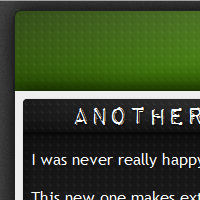
I was never really happy with my previous 2010 theme, so I’ve gone and done a completely new one.
This new one makes extensive use of CSS3 properties, such as gradients and shadows. It looks best in Firefox >= 3.6,followed by Safari >= 4, then Chrome >= 4, Opera >= 10, and IE >= 8. Theoretically, Firefox and Safari/Chrome support the same level of features, but the webkit gradient syntax is absolutely awful. It’s confusing, needlessly complex, and poorly thought-out, in my opinion. Contrast the following two lines:
background: -moz-linear-gradient(top, #111, #333);
background: -webkit-gradient(linear, left top, left bottom, from(#222), to(#333));
See what I mean?
Gecko (Firefox), Webkit (Safari), and Trident (IE) rendering.
When writing a web-app that accepts formatted input from users, you’ll often find that they will copy and paste text from Microsoft Word. Unfortunately, Word fills the markup with lots of unnecessary and unwanted muck. To clean this all up, I wrote the following function (directly implemented on the String prototype below):
When styling text <input> elements, it’s fairly common to run into a serious problem: they don’t behave like block-level elements.
Note: In all of the examples, the container element is filled with blue, and the <input> itself is filled with red and has an opacity of 50% so that you can see it under- or over-flowing the container.
You can see how the input doesn’t automatically flow to full width, as the “display: block” style suggests it should. The kneejerk response is to set the width to 100%:
But notice now how the input overflows its container’s boundaries because of the left padding. At this point, people may resort to non-semantic markup (removing the padding on the <input> and putting it inside a padded <div>) or JavaScript solutions that set the pixel width whenever the container’s width changes (by the addition of scrollbars, for example).
The (semantic) solution
But wait! There is a way to achieve this effect without resorting to an extra <div> or JavaScript:
Do you see what I did there? I removed the horizontal padding on the <input>, so the 100% width now works correctly, and replaced it with “text-indent”. To the user, this looks no different, and it has the advantage of requiring no extraneous markup or tedious scripting.
Drawbacks
Should the user enter a long string, their text will bump up against the right edge. But I think that that’s a boundary condition that I can live with.
Any vertical borders on the <input> will cause it to overflow its container. Personally, if I want a full-width <input>, though, I generally don’t want any borders on its left or right other than those of its container.